What Is a Cloud Network Drive?
A cloud network drive allows users to access cloud-based files through familiar desktop interfaces such as Windows Explorer and macOS Finder. Instead of requiring users to log into a web portal, download files manually, and upload them again after making changes, a cloud network drive makes cloud storage behave like a local drive or traditional network drive.
For organizations transitioning to hybrid work, cloud storage has become essential. However, many users still prefer the simplicity of working directly from their desktop file system. A cloud network drive bridges that gap by providing direct access to cloud files through the same workflows employees already use every day.
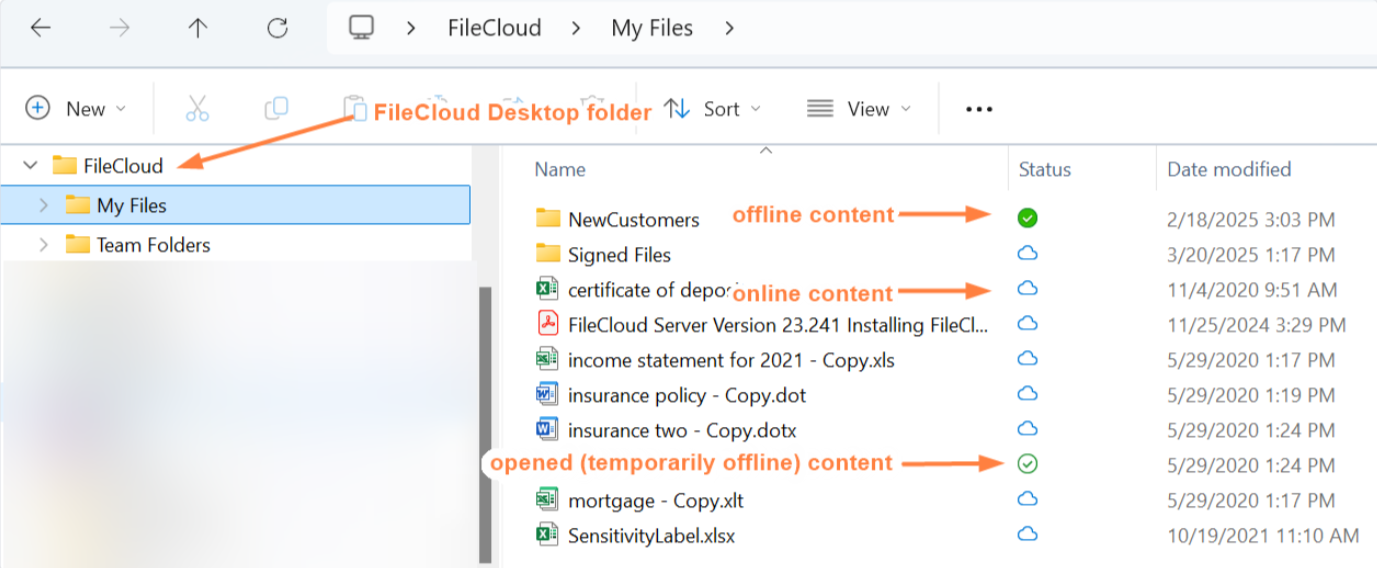
With FileCloud Desktop, users can browse folders, open files, save changes, and organize content through familiar operating system tools. Files remain securely stored in FileCloud while appearing as if they are available locally. This provides a seamless user experience while giving IT teams centralized control over security, data governance, and controlled access to data.
Unlike traditional file synchronization tools that replicate entire file libraries to local devices, FileCloud Desktop uses intelligent on-demand access. Users see all available files immediately, but content is downloaded only when opened, helping reduce storage consumption and improve device performance.
Access Cloud Storage as a Remote Network Drive
Remote access is a business necessity, but many organizations still rely on technologies that were never designed for distributed workforces. VPN-based file access often introduces performance issues, support challenges, and security concerns that slow teams down.
FileCloud Desktop provides a modern alternative. Once connected, FileCloud appears directly within Windows Explorer or macOS Finder, allowing users to work with cloud-hosted files just as they would with locally stored content — without requiring a VPN or a new interface to learn. Files are accessible through any application that reads the native file system, including Microsoft Office, Adobe Creative Cloud, AutoCAD, and other desktop software.
This approach is especially valuable for organizations with large datasets, engineering documents, creative assets, or project files that cannot reasonably be synchronized to every endpoint. Rather than copying files to local machines, users gain immediate visibility into all available content while preserving local storage. Remote employees, contractors, partners, and geographically distributed teams can all access the same files consistently, with the scalability and security of cloud storage behind them.

Why Organizations Are Replacing Shared Network Drives
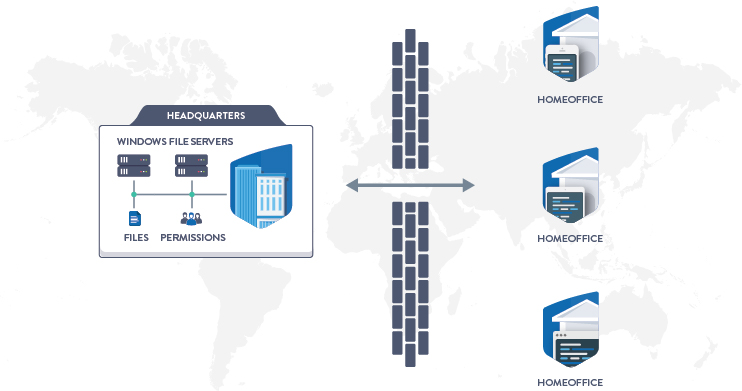
Traditional network drives were designed for a different era — one where employees were physically on-site and connected through on-premises infrastructure. Today’s workforce is distributed, device-diverse, and rarely confined to a single location. The result is a growing list of operational friction points that legacy shared network drives were never built to handle:
- VPN dependencies that complicate remote access and increase support overhead
- Storage capacity constrained by local hardware, with scaling requiring significant capital investment
- Fragmented visibility across systems and locations, creating security blind spots
- Ongoing infrastructure costs for file servers, storage arrays, and remote access systems
FileCloud allows organizations to replace traditional shared network drives with a cloud-based alternative while preserving the experience employees already know. Files remain accessible through familiar folders and directories in Windows Explorer or macOS Finder — no VPN required, no new interface to learn. IT teams gain centralized governance, enhanced security controls, and flexible deployment options without maintaining the underlying hardware.
This makes FileCloud a practical path for organizations looking to modernize legacy file servers without disrupting how employees access their work.
Security, Governance, and Deployment Flexibility
A cloud network drive should not only improve accessibility—it should also support organizational security and governance requirements.
FileCloud combines virtual drive functionality with enterprise-grade security capabilities, centralized administration, access controls, audit logging, and deployment flexibility. Organizations can maintain control over how data is accessed while providing a seamless user experience.
Unlike many cloud storage solutions that require organizations to adopt a specific deployment model, FileCloud supports on-premises, private cloud, and hosted deployments. This flexibility allows organizations to align file access infrastructure with business, regulatory, and data residency requirements.
The result is a cloud network drive solution that helps organizations modernize file access while maintaining visibility, governance, and control over their information.

Ideal for VDI and Terminal Server environments
Virtual Desktop Infrastructure (VDI) and Terminal Server environments present unique challenges for traditional file synchronization tools. Large synchronized file repositories can consume storage resources, impact performance, and increase infrastructure costs.
FileCloud Desktop is particularly well suited for these environments because files are streamed on demand. Users gain visibility into all available content without requiring full synchronization to the virtual desktop environment. This reduces storage requirements while maintaining a responsive user experience. Organizations can support remote workers, contractors, and distributed teams more efficiently while preserving centralized control over business data.
For companies investing in virtual workspaces, cloud network drive functionality helps deliver the accessibility users need without the overhead associated with traditional synchronization approaches.